On-brand agents with Hermes Desktop.
Hermes runs the work using brand context from Bloom.

AI agents are getting good at doing work. Writing copy, scheduling posts, drafting campaigns. To apply a brand consistently, they also need its guidance and assets.
Brand guidance may be spread across PDFs, design files, and decisions that never reach the agent. Without that context, the agent has to guess at the brand's voice and visual style.
Bloom fixes that. Bloom is the brand layer for agents. It provides shared brand context that connected systems can use and update. The agent can retrieve that guidance for its work and call Bloom for brand-aware image generation, then review the results.
This guide walks through connecting Bloom to Hermes Desktop, the native desktop app from Nous Research for running AI agents locally. By the end you'll have an agent that can generate on-brand assets from a single prompt.
What is Hermes Desktop?
Hermes is an open-source AI agent by Nous Research. It comes in three flavors: terminal, web dashboard, and desktop app. All share the same settings and sessions.
Hermes Desktop is the app version. It handles model selection, server management, and tool approval through a visual interface. You pick a model, connect your tools, and start chatting.
What makes it useful for Bloom: Hermes supports MCP natively. Connecting Bloom gives the agent direct access to your brand. It can onboard brands, generate on-brand assets, edit them, resize for different platforms, and search your asset library. All from a single conversation.
What you'll need
- Hermes Desktop. Download from hermes-agent.nousresearch.com
- A Bloom account. Sign up at trybloom.ai if you don't have one
- A model API key from Anthropic, OpenAI, or any provider Hermes supports (Hermes also supports Nous Portal with 300+ models)
Setup
Four steps. The whole thing takes about five minutes.
Install Hermes Desktop
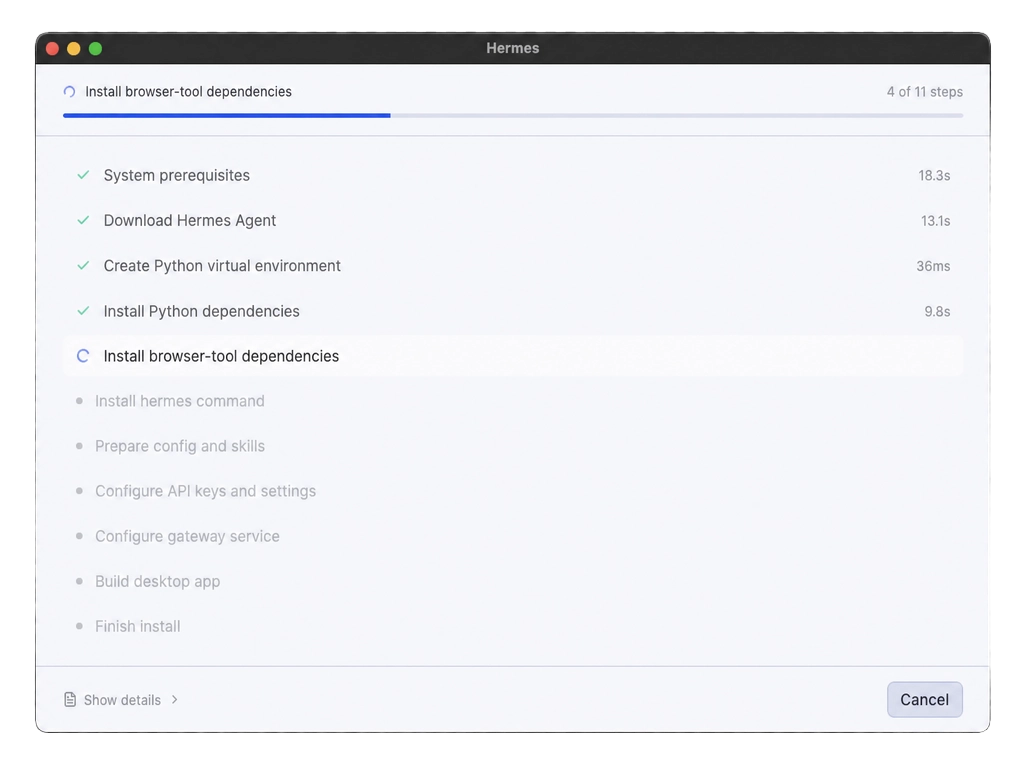
Download the installer for your platform from the Hermes site. On first launch, Hermes installs everything it needs on your computer and walks you through picking a model provider.
Pick a model
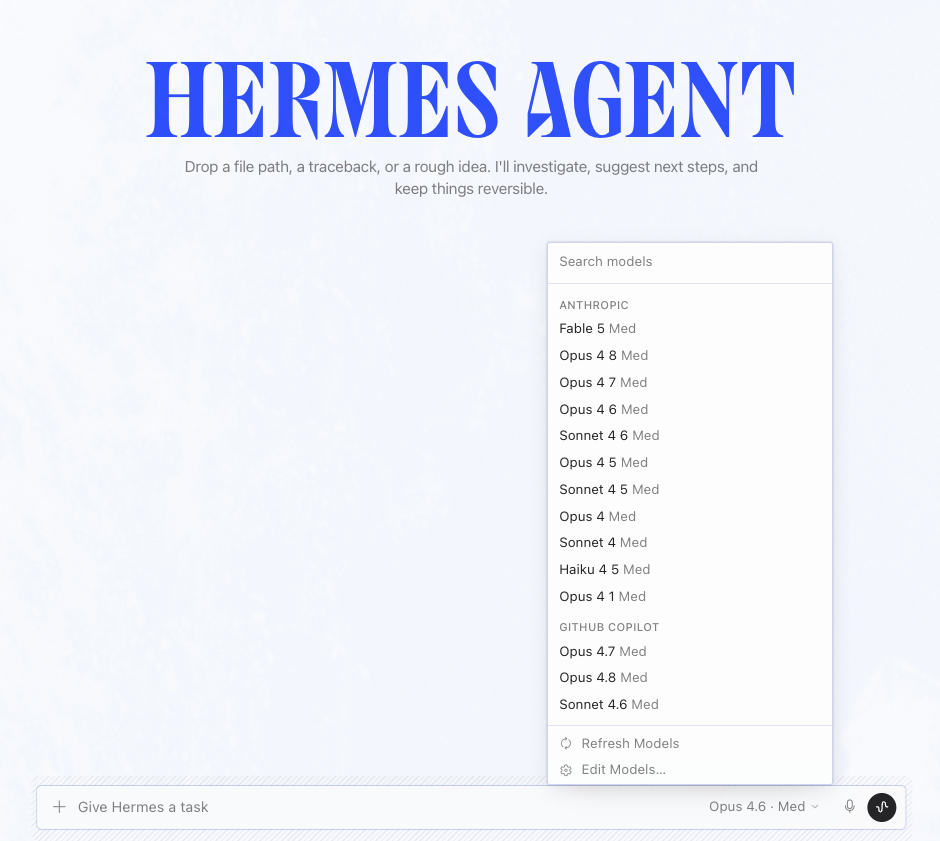
The first-launch wizard asks you to choose a provider and model. Any model with 64K+ context works. We recommend Claude Sonnet or Opus for the best tool-use performance with Bloom.
You can change models any time from the picker in the prompt box.
Connect Bloom
Open the integrated terminal in Hermes Desktop and run:
Hermes terminalhermes mcp add bloom --url "https://mcp.trybloom.ai/mcp" --auth oauth
This opens a browser window to sign in to your Bloom account. Once authorized, Hermes connects to Bloom automatically.
Verify the connection
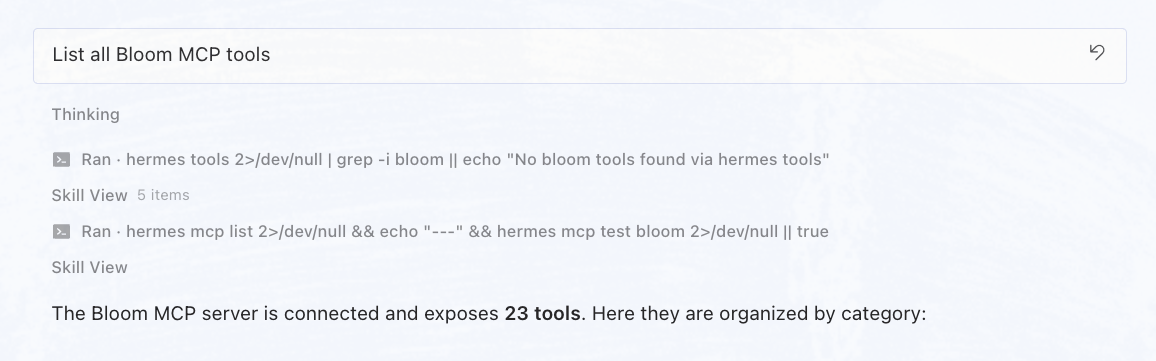
Ask Hermes if Bloom is working:
List all Bloom MCP tools.
You should see generate_image, onboard_brand, list_brands, and others. If they show up, you're connected.
Using it
Once Bloom is connected, the agent can call your brand directly. Here are a few things you can do from a single message.
Onboard a brand
The agent can create a brand from a website, Instagram account, files, or a combination of sources. This example uses a website:
Onboard gumroad.com into Bloom.
Hermes calls onboard_brand, and Bloom develops brand context from the supplied sources. The agent waits until the brand is ready, then reads its active Brand Skill.
Generate on-brand assets
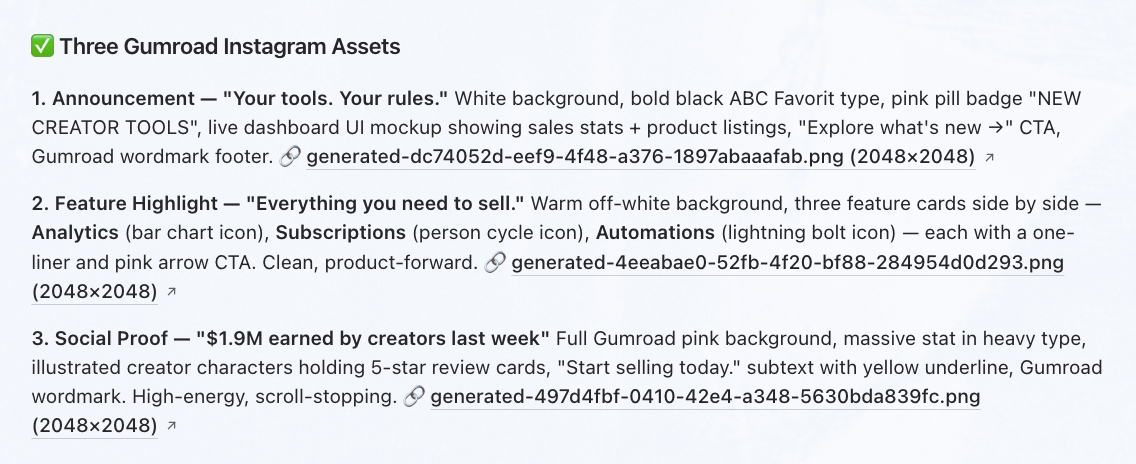
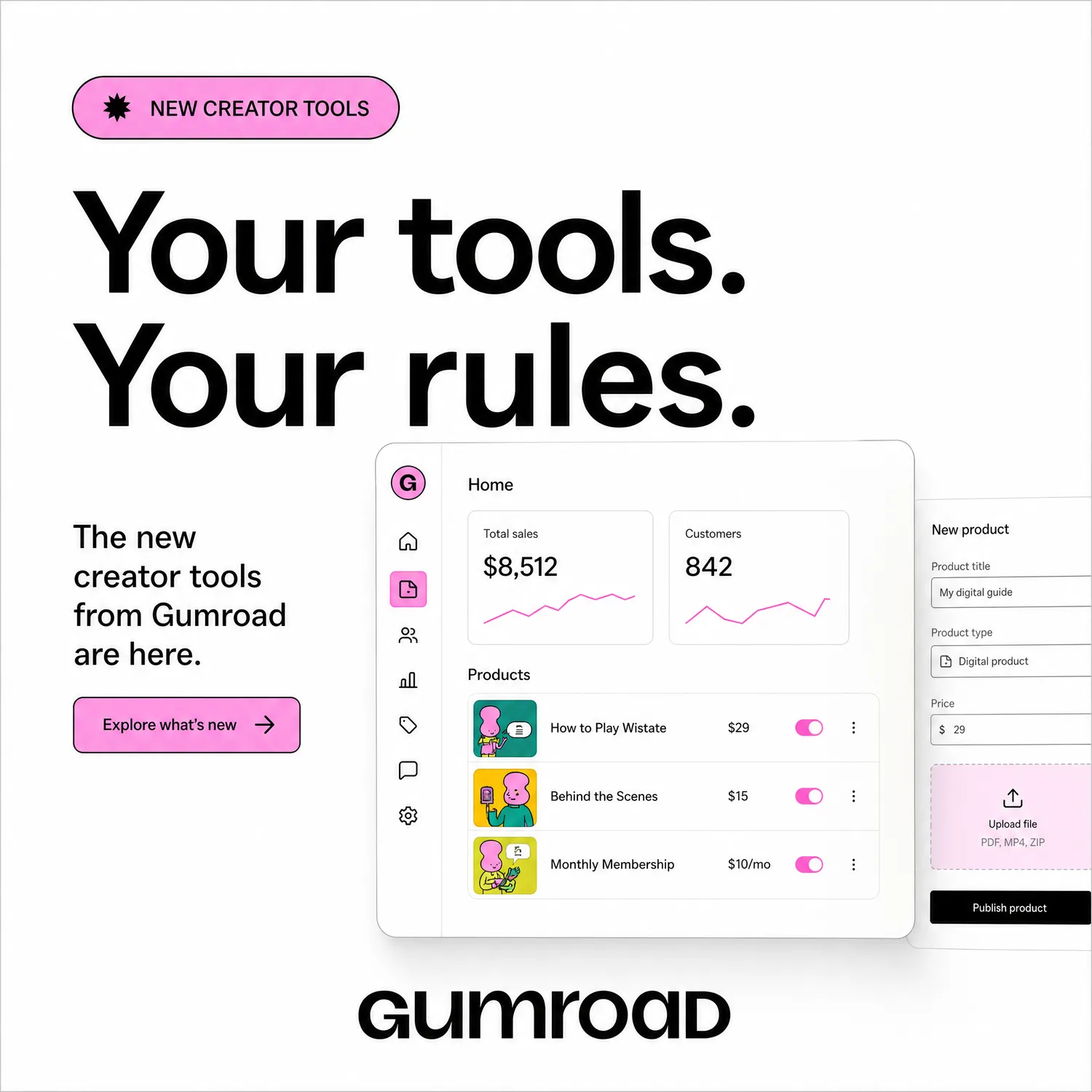
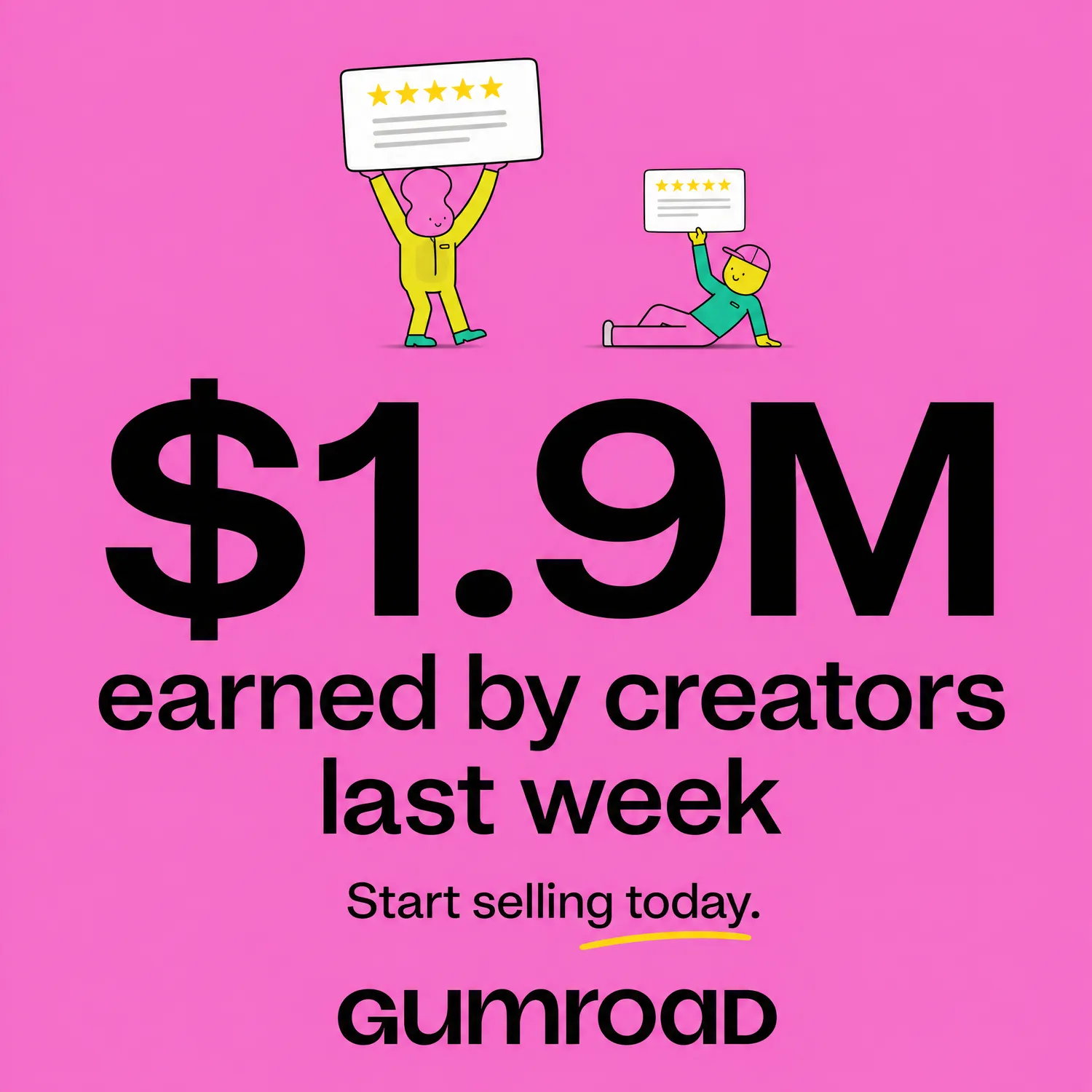
Generate three Instagram post assets for Gumroad's creator tools launch.
Bloom's brand-aware image generation applies the active Brand Skill. The agent supplies the brief and reviews the results for brand fit, text accuracy, and product details before using them.

Recreate a high-performing ad
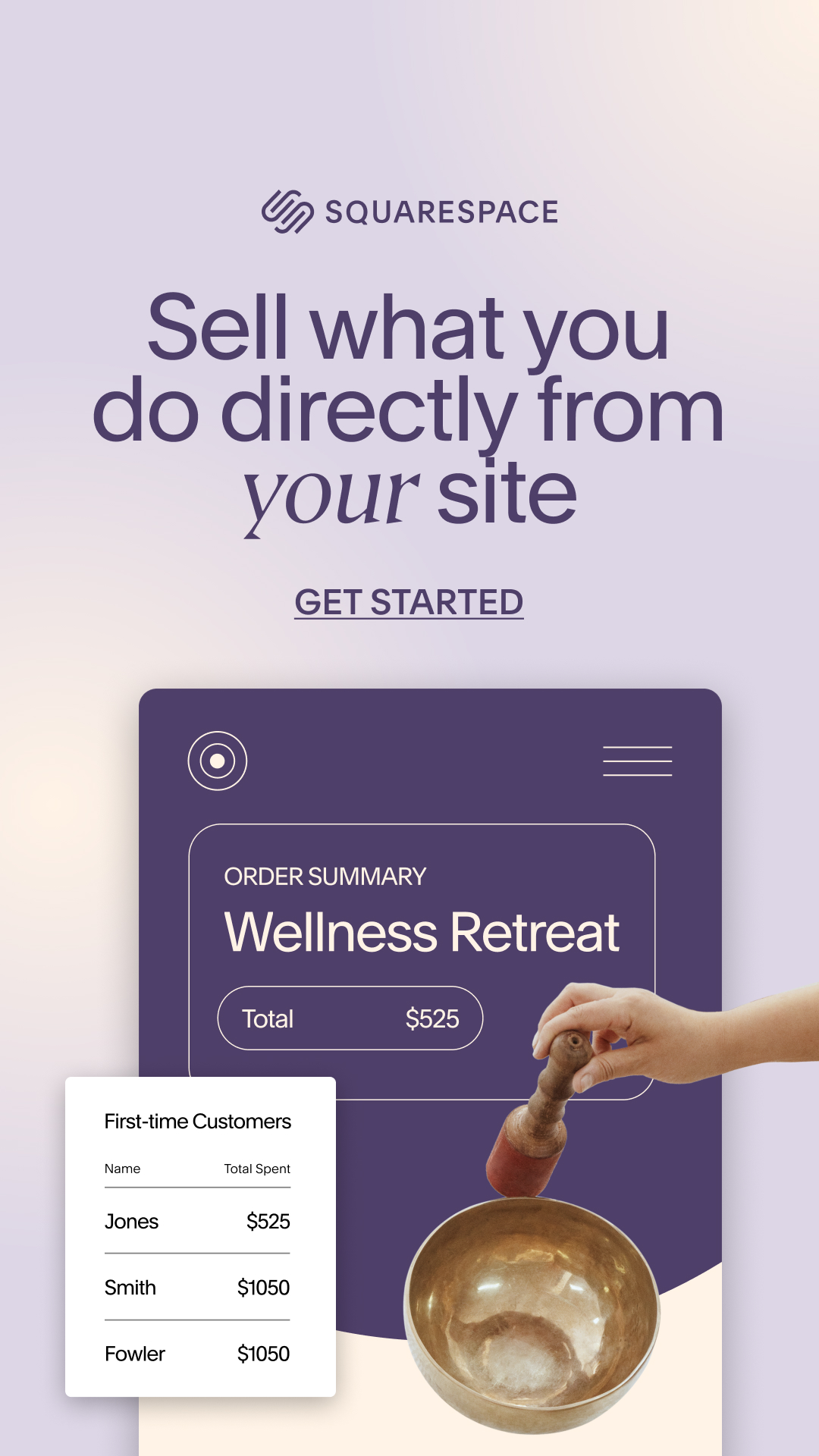
Find high-performing Instagram ads for creator platforms, then recreate the best one for Gumroad.
Bloom provides a curated reference-ad library. The agent calls find_reference_ads to find relevant examples, then uses a selected reference and the Brand Skill to guide a new asset. Review the result before using it.
Edit and resize
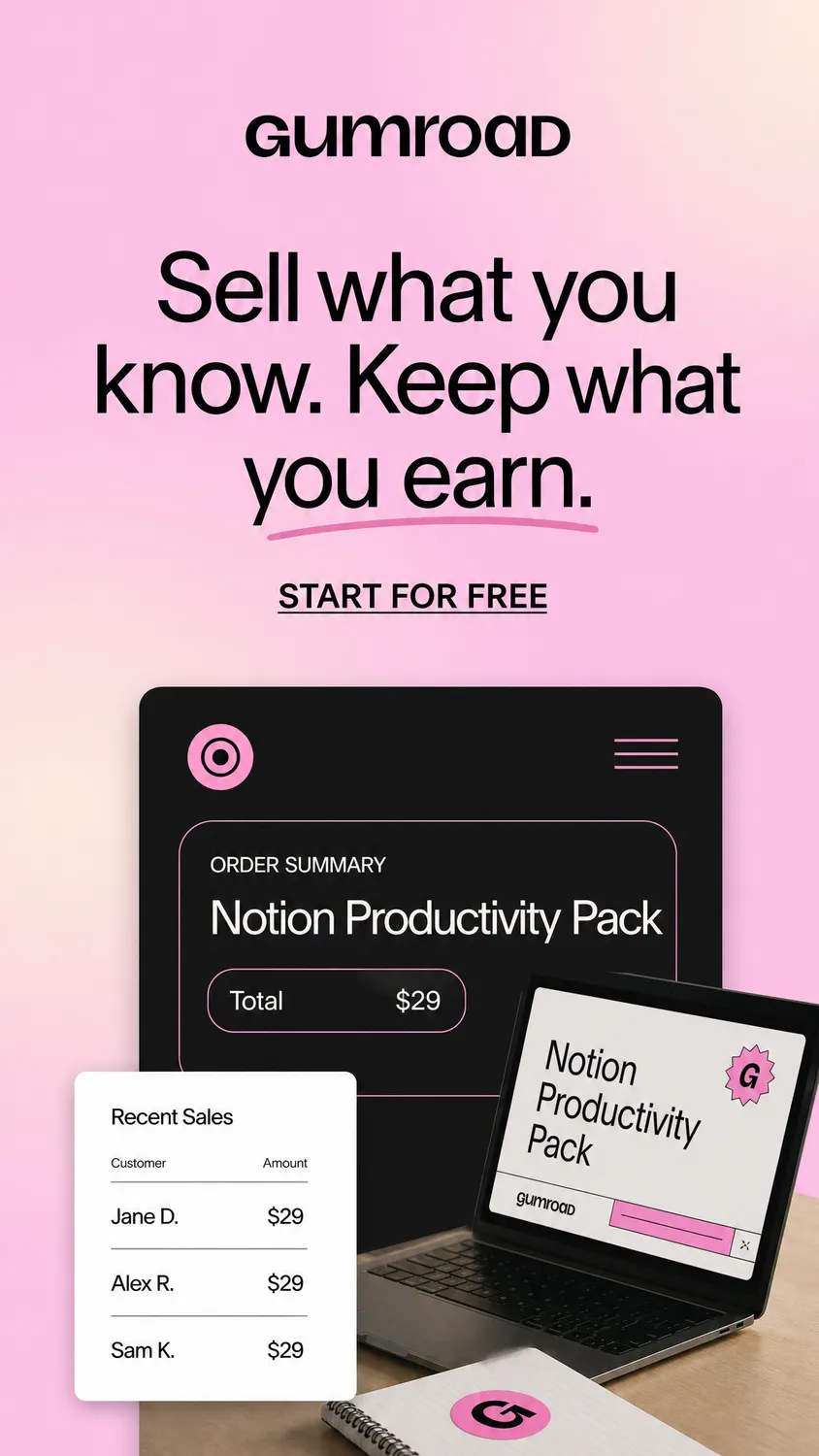
Resize the best one for X and LinkedIn too, keep the Gumroad brand.
Bloom handles resizing and format adaptation. The agent can chain generate, edit, and resize in a single conversation without you opening another tool.
What the agent gets access to
Ask Hermes to list the tools available from your connected Bloom account. The live tools/list response defines the current inventory and request fields; availability can differ by account.
Bloom supports creating and editing brands, retrieving brand guidance and files, and generating and adapting images. For the current capability map, including Model Gateway private-beta availability, see the Bloom MCP tools reference.
Going further
This setup gives your local agent reusable brand context for its work. A few ways to extend it:
- Connect more tools. Hermes supports any MCP-compatible tool. Add Slack, Linear, Notion, or your own tools alongside Bloom. The agent can use brand context across those workflows and publish reviewed work when you authorize it.
- Use reference assets. Call
search_user_imagesbefore generating to pull existing assets as references. Choose references that fit the brief and check how the generated result uses them. - Run it remote. Hermes Desktop can connect to a remote Hermes instance running on a VPS. Run the heavy compute server-side and use the desktop app as a thin client.
Bloom, the brand layer, callable from any agent. trybloom.ai
Hermes Desktop, open-source AI agent with native MCP support. hermes-agent.nousresearch.com